FeaturesBookings
Bookings
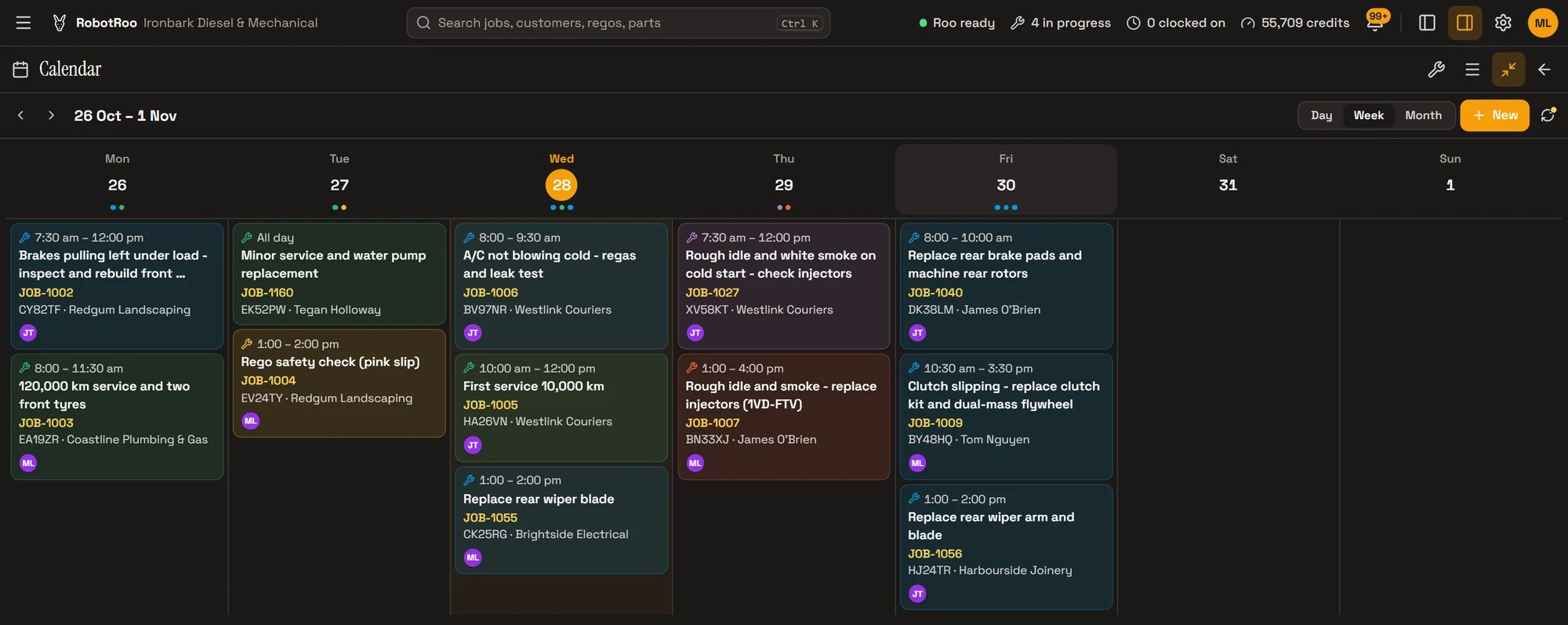
Your workshop’s calendar by day, week or month, with the job, rego, customer and mechanic on every booking.
Book a job from the job, from the calendar or by asking Roo, and drag a booking to another day when plans change.
What it does
Day, week and month
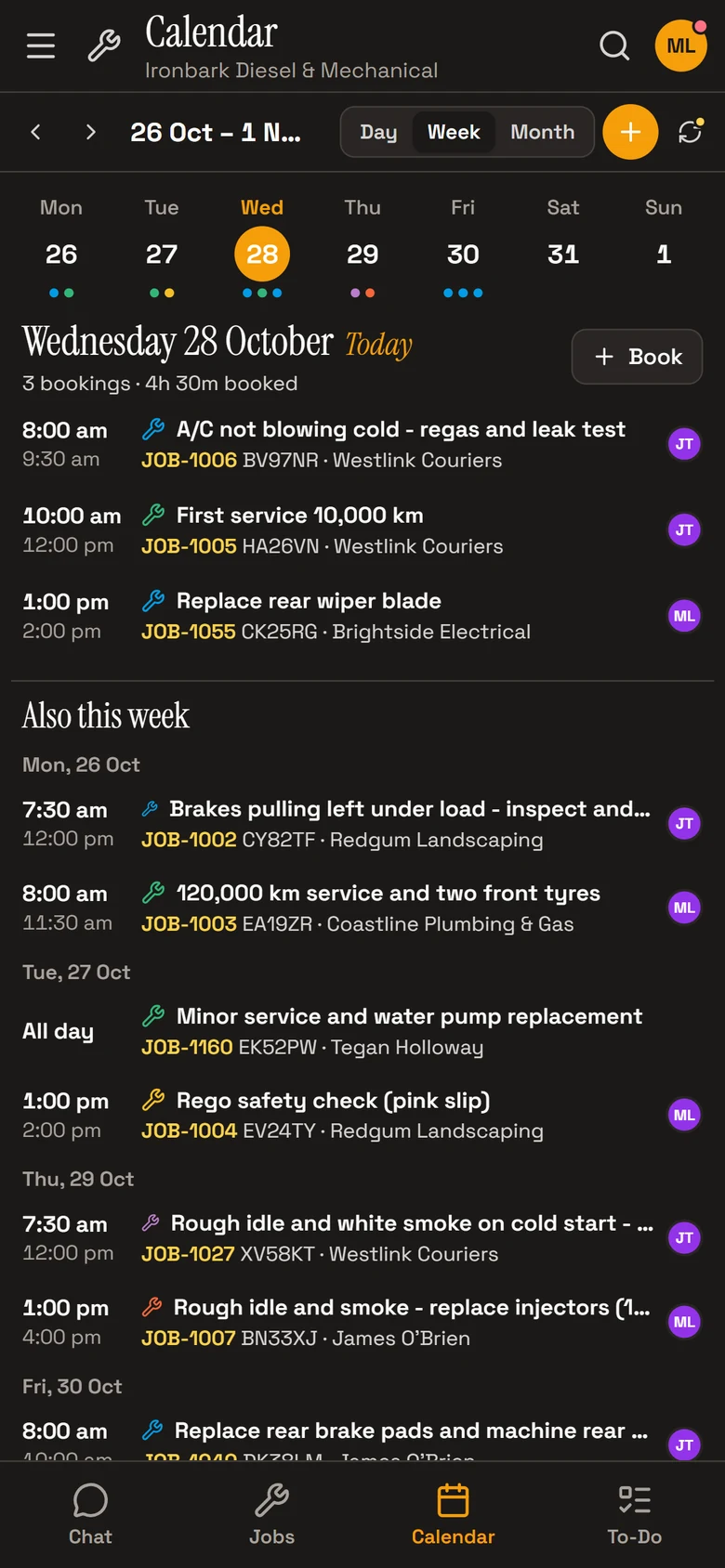
See the workshop’s day as a timeline, the week as columns or the month as a grid. On a phone, the week sits above the day’s bookings.
Book from anywhere
Book a job from the job itself, from a day in the calendar, or by asking Roo. A new entry can create its job as it’s booked.
Who’s on it
Each booking shows who it’s with, the job number, rego and customer, in a colour you choose.
Move it in one drag
Drag a booking to another day and it keeps its times. Undo is there for a few seconds after.
The month, at a glance
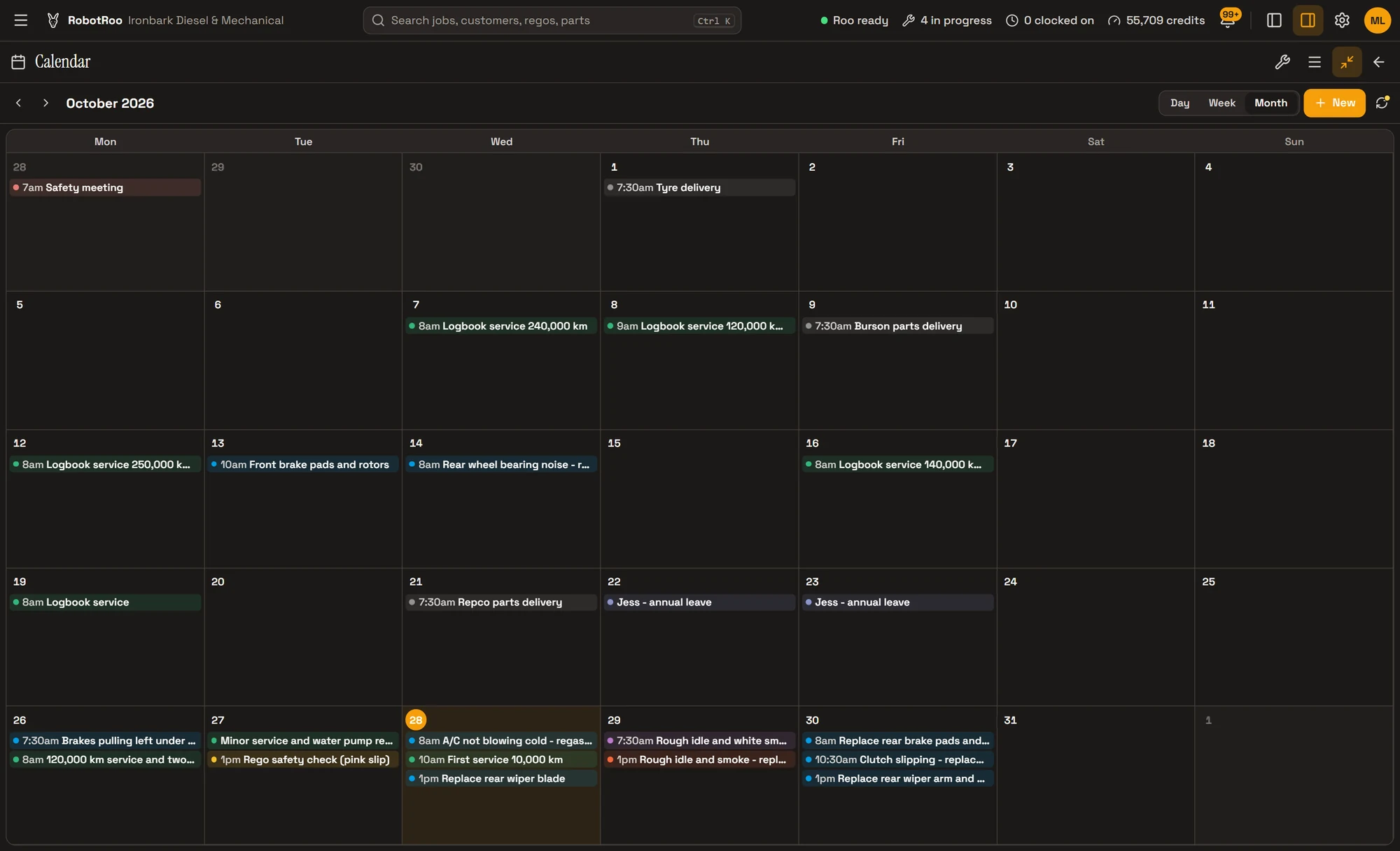
Month view shows every booking and entry on its day, with its start time, in its own colour: jobs, deliveries, meetings and leave.
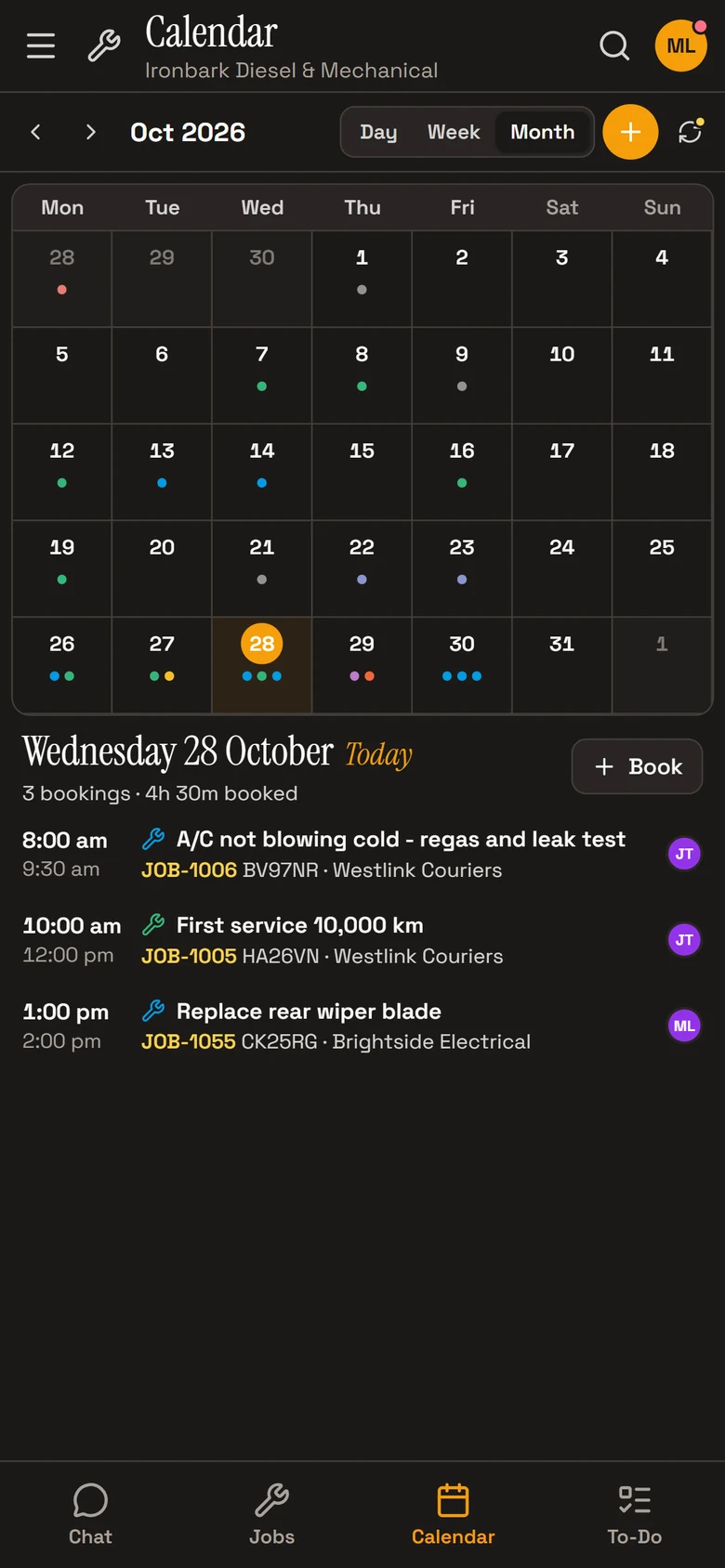
On a phone, each day has a dot for each booking in its colour. Tap a day to see its bookings underneath.
Linked to the job
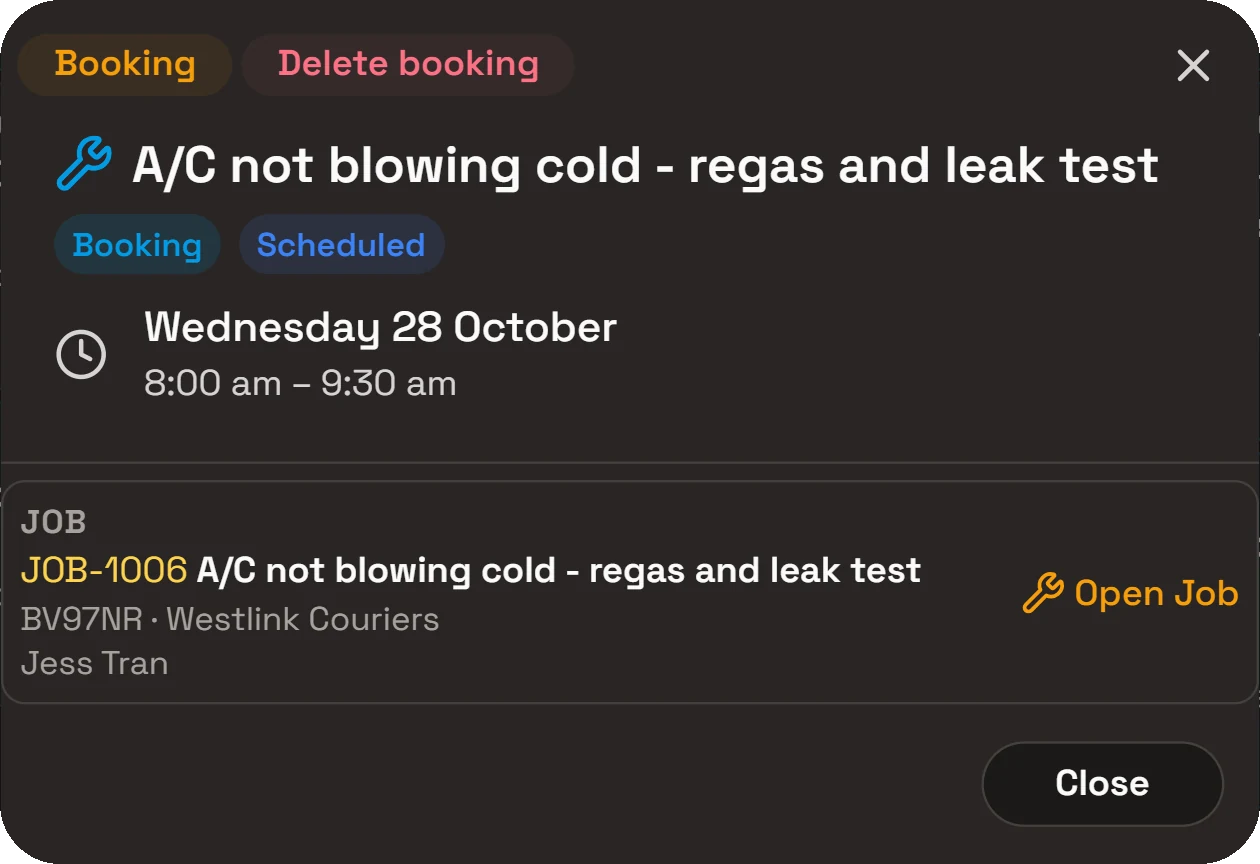
A booking belongs to its job. Open it in the calendar and it shows the job number, title, rego, customer and mechanic, with Open Job to go straight there.
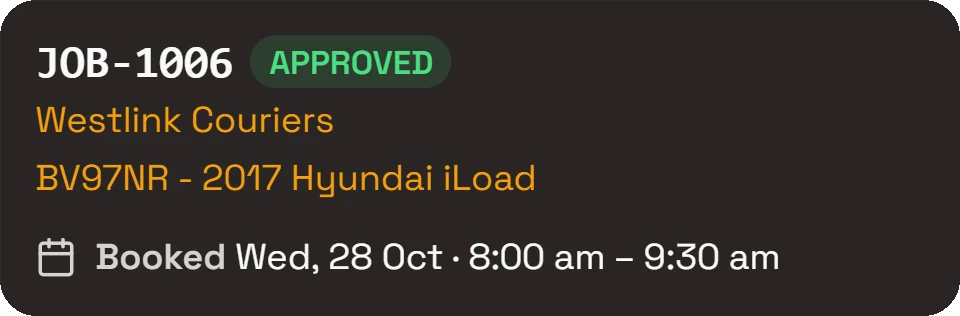
The job shows when it’s booked in, with Edit booking beside it. A job that isn’t booked has Book job. Cancel or void a job and its booking comes off the calendar; cancel the booking and the job stays.
Book it the way you’d say it
Tell Roo the car, the work and when. He finds the vehicle, makes the job if there isn’t one, and books it in with the job’s mechanic or whoever you name.
Ask what’s booked for a day or a week, move a booking, or take one off the calendar. Bookings he makes, moves or cancels come with Undo.
Booked CX47RK in for a 2-hour service next Tuesday from 9–11am.
- Created JOB-1161Undo
- Booked JOB-1161Undo
How it helps
- The week on one screen.Every booking with its times, car, customer and mechanic, side by side.
- One booking per job.The job and the calendar always agree on when it’s booked, because they share the one booking.
- Plans change, quickly.Drag a booking to another day, or ask Roo to move it.
- Know how full the day is.Each day shows how many bookings it has and the hours booked.
Ask Roo
Ask me what’s booked, book a job in, move or cancel a booking, or put something else on the calendar.
Things to ask
- What’s booked in tomorrow?
- Book JOB-1040 in with Jess on Friday at 8am for two hours.
- Move JOB-1007 to Thursday at 1pm.
- Put Mick on leave next Monday.
More details
For anyone who wants to know more.
Views
- Day timeline, week columns and month grid
- On a phone, a week strip with dots for each day’s bookings
- The day’s bookings and hours booked, with the rest of the week below
On a booking
- Start and end times, or all day
- Who it’s with
- The job’s title, number, rego and customer
- A colour from the palette
Booking a job
- Book job on the job, then Edit or Cancel booking from it
- A booking opened in the calendar shows its job, with Open Job
- Book on a day, or New in the calendar
- A new entry can create its job as it’s saved
- Roo books, moves and cancels when you ask
Moving a booking
- Drag it to another day with a mouse, or hold and drag with a finger
- It keeps its times; a booking over several days keeps its length
- Undo for a few seconds after a move
Other entries
- Appointments, deliveries, leave and meetings
- Title, times, people, location and notes
Questions
Can customers book online?
Not yet. Bookings are made by your team in RobotRoo, or by Roo when you ask him.
Does it warn me about double bookings?
Not yet. Check the day or week view before you book; it shows every booking with who it’s with.
If I cancel a booking, is the job deleted?
No. Cancelling takes the booking off the calendar and keeps the job.
Can I put things that aren’t jobs on the calendar?
Yes. Add appointments, deliveries, leave or meetings, with who they’re with, where and any notes.
See the other features
Customers, vehicles, the Job Centre, quotes and invoices, parts, research and more.