FeaturesJob Centre
Job Centre
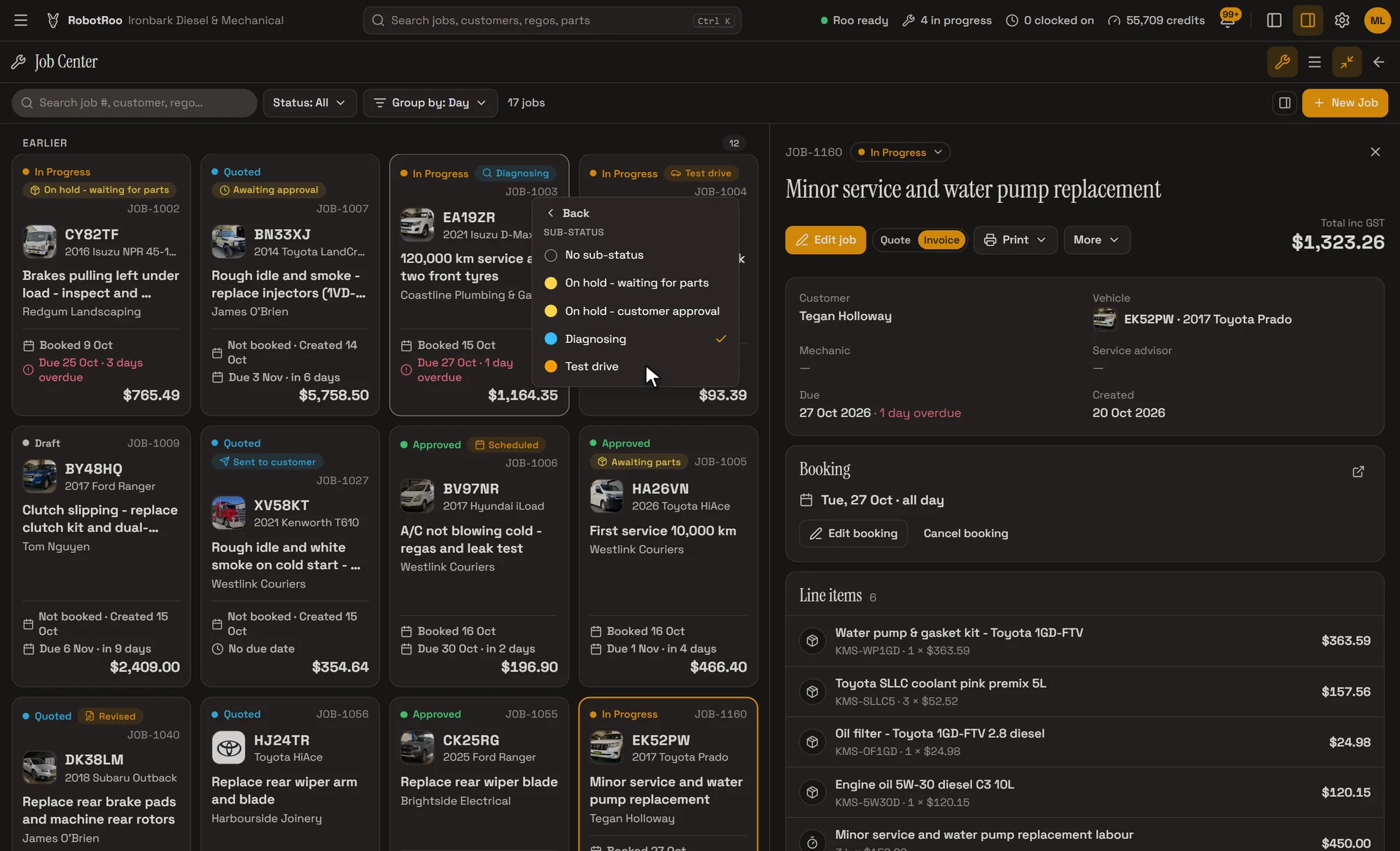
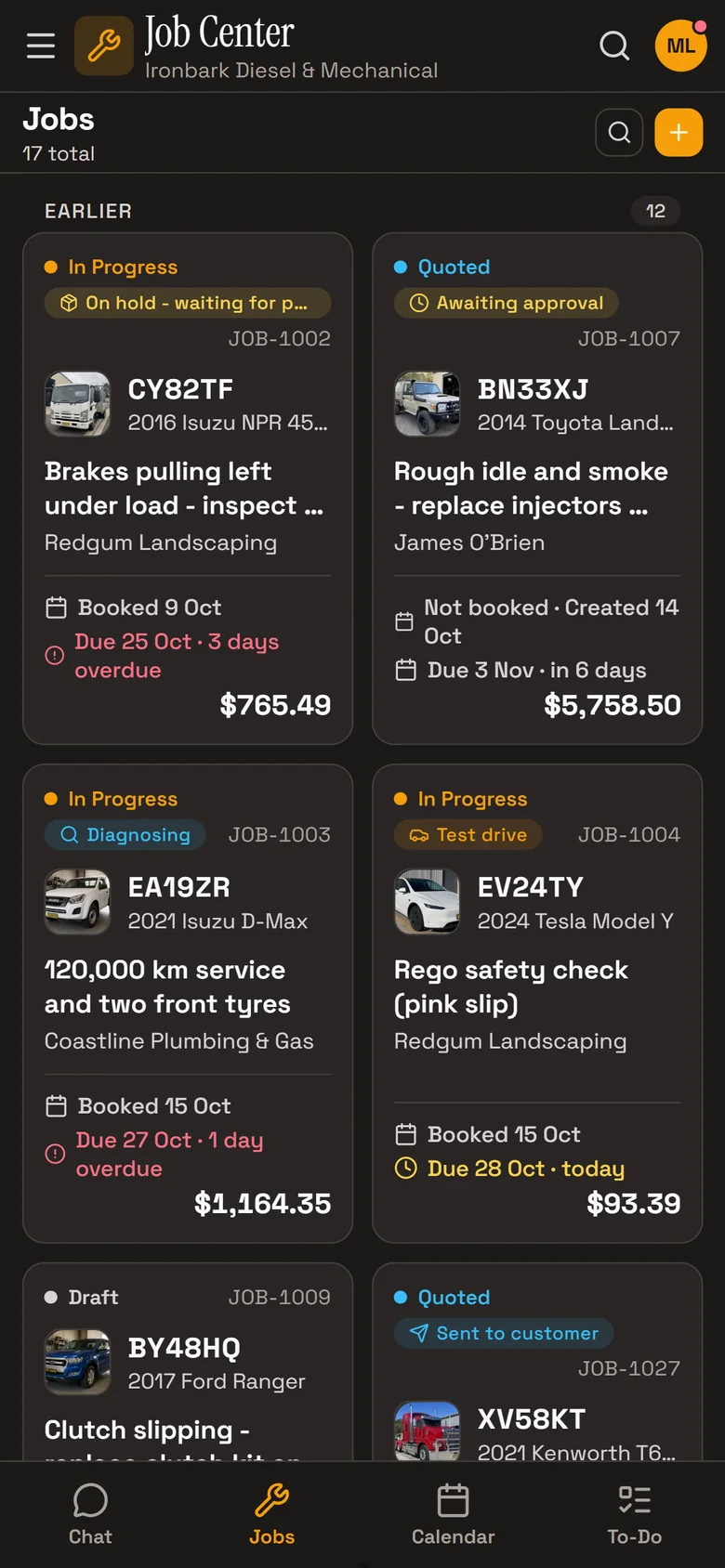
Every job in the workshop on one screen, as a card with its vehicle, customer, status, dates and total.
See what’s booked today and what’s overdue at a glance, open any job beside the list, and ask Roo to change it in its own chat.
What it does
Every job as a card
The vehicle’s photo, rego and model, the work, the customer, its status, when it’s booked, when it’s due and the total.
Grouped your way
By day (earlier, today, each day of the next week, later), or by status, mechanic or customer. Overdue jobs show in red.
Open a job beside the list
On a computer, a job opens next to the cards with its customer, vehicle, booking and lines. Open its full workspace from there.
Your own sub-statuses
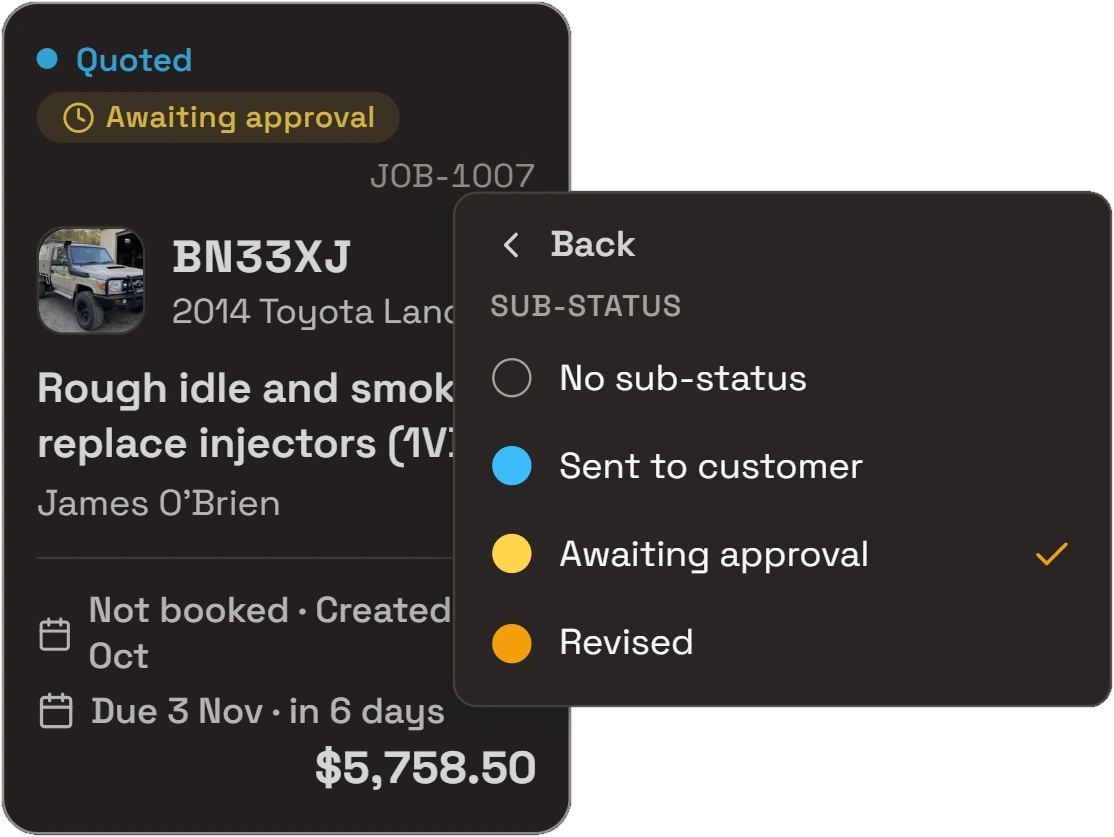
Under each status, add your own steps with a colour and icon, such as waiting on parts or waiting on the customer.
Every step, at a glance
Each status can have your own sub-statuses: waiting on parts, diagnosing, test drive, awaiting approval, ready for pickup, or whatever your workshop’s steps are. They show on the job’s card in their own colour and icon.
Right-click a card on a computer, or press and hold it on a phone, to change its status or sub-status without opening the job.
Inside a job
A job is the quote, then the invoice. Its tabs hold everything about the work.
- Parts & LaborLines from your catalogue or typed in, grouped, with totals, clock on and off, job details, and the invoice, mechanic, job card and internal notes.
- Its own chat with RooAsk Roo about this job or to change it. His changes appear in the chat; supported changes can be undone.
- ResearchResearch before you quote: the workshop’s history, recalls and warnings, labour and parts options.
- Vehicle, customer and historyThe vehicle’s details and past services, the customer’s details with call, text and email.
- Photos, documents and to-dosPhotos of the work, the job’s quote, invoice and job card, and its to-dos.
- ActivityEach change to the job, by staff or by Roo, with notes your team adds.
How it helps
- Nothing slips.What’s booked today, this week and what’s overdue is on one screen.
- Find a job fast.Search by job number, customer, rego, vehicle or mechanic, and filter by status.
- Less clicking around.Check a job’s customer, vehicle, booking and lines without leaving the list.
- Everyone sees the same board.The office and the floor work from the same jobs. Mechanics see the jobs they’re on.
Ask Roo
Ask me about a job, or to change one: its status, dates, lines, notes or booking. Supported changes can be undone from the chat.
Moved JOB-1009’s due date to Friday, 23 October.
- Updated JOB-1009Undo
Things to ask
- Which jobs are overdue?
- Book the Prado in for Tuesday at 8.
- Add 2 hours labour to JOB-1003.
- Mark JOB-1007 as approved.
More details
For anyone who wants to know more.
A job card
- Status, plus On the clock and your own sub-status
- Job number, and the vehicle’s photo or maker’s logo
- Rego, vehicle, the work and the customer
- Booked date, or not booked and when it was created
- Due date, with days left or overdue
- Total
The board
- Group by day, status, mechanic or customer; your choice is remembered
- By day: earlier, today, each of the next seven days, later and closed
- Status filter: all open jobs, in progress, quoted, completed, invoiced, cancelled, archived or voided
- Search by job number, title, customer, rego, vehicle or mechanic
- New Job with its customer and vehicle, numbered for you
On a computer and a phone
- On a computer, a job opens beside the cards, on the left or right; arrow keys move between jobs
- On a phone, a job opens full screen
- Press and hold a card to change its status or sub-status, open it or archive it
Statuses
- Draft, quoted, approved, in progress, completed, invoiced and cancelled, each with its colour
- Your own sub-statuses under each, with nine colours and a choice of icons
- Cancelling a quote asks why the customer said no
- Closed jobs are locked; void a job and keep its record
Quotes, invoices and job cards
- One job is the quote, then the invoice, with a Quote | Invoice switch
- Preview, download or email the quote, invoice or job card as a PDF
- Finalise & Invoice when the work is done
Dates and numbers
- Created, booked, due, follow-up and completed dates
- Set the job card number to carry on from your old system
Access
- Mechanics see the jobs they’re on, write notes, add photos and set progress
- Service advisers create jobs and change their status
- Managers and owners edit job details; deleting a job needs its number typed to confirm
- Archived and voided jobs can be brought back
Questions
Can I see what’s booked for the week?
Yes. Grouped by day, the Job Centre shows earlier jobs, today, each of the next seven days and later. The calendar shows the same bookings by day, week or month.
Can I use my own job stages?
Yes. Add your own sub-statuses under each status, with a colour and icon, and choose which roles can change the list.
Does it work on a phone?
Yes. The cards sit two to a row, and a job opens full screen. RobotRoo runs in the browser, so there’s nothing to install.
Can I carry on my job numbers?
Yes. Set the next job number in Settings, and new jobs carry on from there.
What if a job is entered by mistake?
Archive it or void it, and bring it back later if you need to. Managers and owners can delete a job after typing its number to confirm.
See the other features
Customers, vehicles, parts, quotes and invoices, bookings, research and more.