
FeaturesUser roles
User roles
Everyone on the team has their own login and a role: Owner, Manager, Adviser or Mechanic. The role decides what they can see and change.
Mechanics see only the jobs assigned to them. Roo, the AI assistant, works with the same permissions as the person asking.
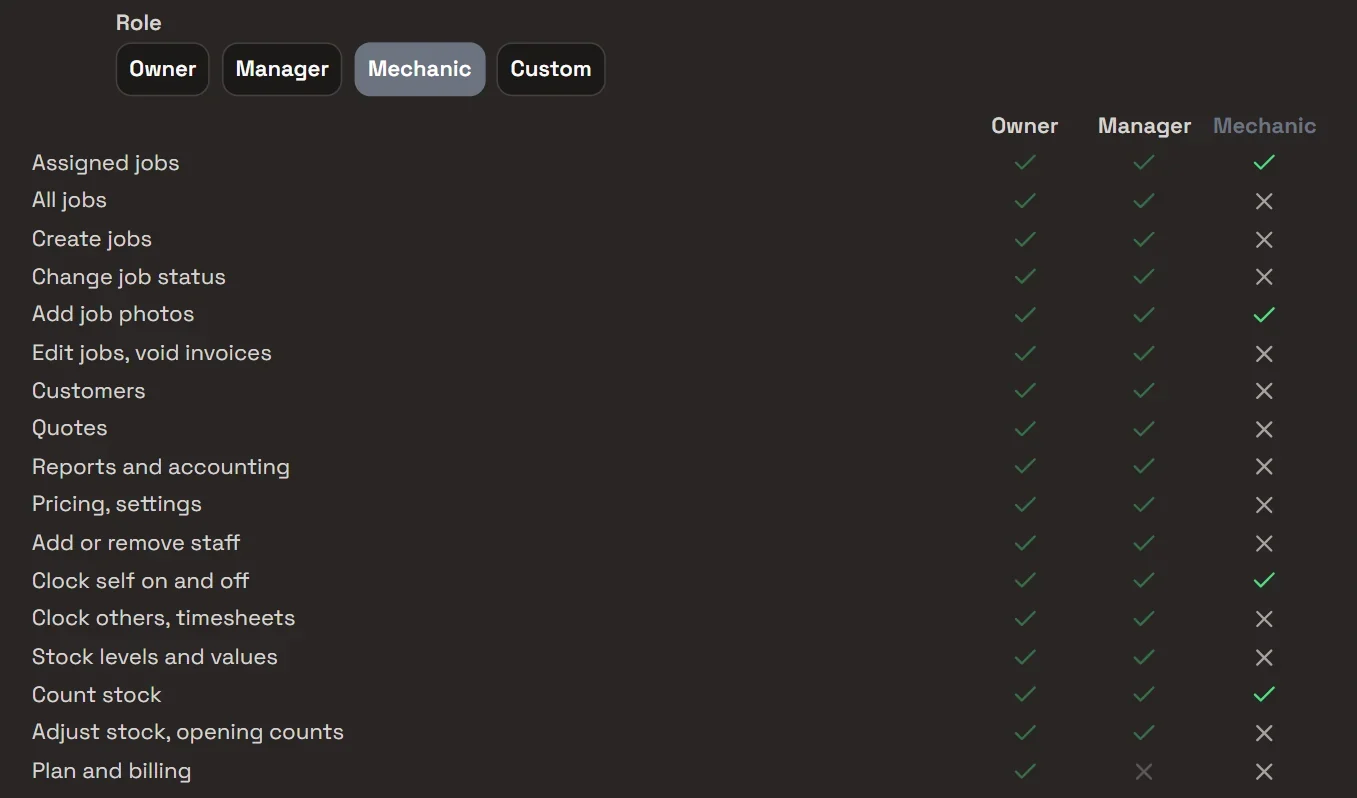

The roles
Owner
Everything, including the plan and billing, the workshop’s data, and making someone else an owner.
Manager
Runs the workshop: all jobs, customers, quotes and invoices, reports and accounting, pricing and settings, and the team. Not billing.
Adviser
The front counter: all jobs, customers and quotes. Creates jobs, finalises invoices and records payments. No reports, settings or changes to job lines.
Mechanic
Their own assigned jobs: notes, Mechanic Notes, photos and progress. Clocks on and off and counts stock. No customer list, invoicing or reports.
Adding staff
In Settings › Team, choose Add Team Member, enter their name and email, and pick a role. They get an email with a link to set their own password, which works once, for 7 days.
Change someone’s role or deactivate their account from the same screen. How many people you can add depends on your plan; see Pricing.
- A login each.One person per email, with their own password. Nobody shares a login.
- Owners stay in charge.Only an owner can make someone an owner or change another owner, and nobody can change their own role.
- Owners and service managers.They add staff, change roles and deactivate accounts.
- Deactivated, not deleted.Deactivating ends the person’s sessions and frees the seat. Their work stays on the jobs.
How it helps
- Mechanics see their own work.Their Job Centre and calendar show the jobs assigned to them, on a computer or a phone.
- The books stay with the office.Reports, accounting and pricing are for owners and service managers, and billing is the owner’s.
- A record of who did what.Each job’s Activity tab lists every change, by staff and by Roo. The Security log lists sign-ins and changes to staff.
- A PIN each.An owner can lock the app after 1 to 60 idle minutes, and each person unlocks it with their own PIN.
Ask Roo
I work with your permissions. A mechanic who asks me about jobs gets their own, and I only change what you could change yourself.
Things a mechanic can ask
- Which of my jobs are in progress?
- Add this to JOB-1160’s mechanic notes.
- What did we do on EK52PW last time?
More details
For anyone who wants to know more.
Owners only
- Plan and billing
- Download the workshop’s data, or close it
- Lock when idle, and resetting someone’s authenticator app
- Making someone an owner
Owners and managers
- Team and the Security log
- Reports, accounting and Xero
- Pricing, business profile, documents and writing style
- Announcements, timesheets and clocking others on
Advisers
- All jobs, customers and quotes
- Create jobs, finalise invoices and record payments
- See, count, receive and order stock
- No clock-ons, reports or workshop settings
Mechanics
- Their assigned jobs, and those jobs’ chats
- Notes, Mechanic Notes, photos and progress
- Clock themselves on and off; count stock
- Vehicles and their service history
Questions
Can mechanics see other mechanics’ jobs?
No. A mechanic sees only the jobs assigned to them, in the Job Centre, the calendar and when they ask Roo.
Can I set up my own roles?
No. Each person has one of the four roles, and the table in Settings › Team shows what each one can do.
What happens when someone leaves?
Deactivate their account in Settings › Team. It ends their sessions and frees the seat, and everything they did stays on the jobs.
Can two people share a login?
No. Each person signs in with their own email and password, so the Activity tab on each job shows who did what.
See the other features
Customers, vehicles, the Job Centre, quotes and invoices, bookings, reports and more.